Search a Graph Visualization
You can search using keywords or run a conditional search using the Search graph box directly in a graph visualization in Graph Studio.
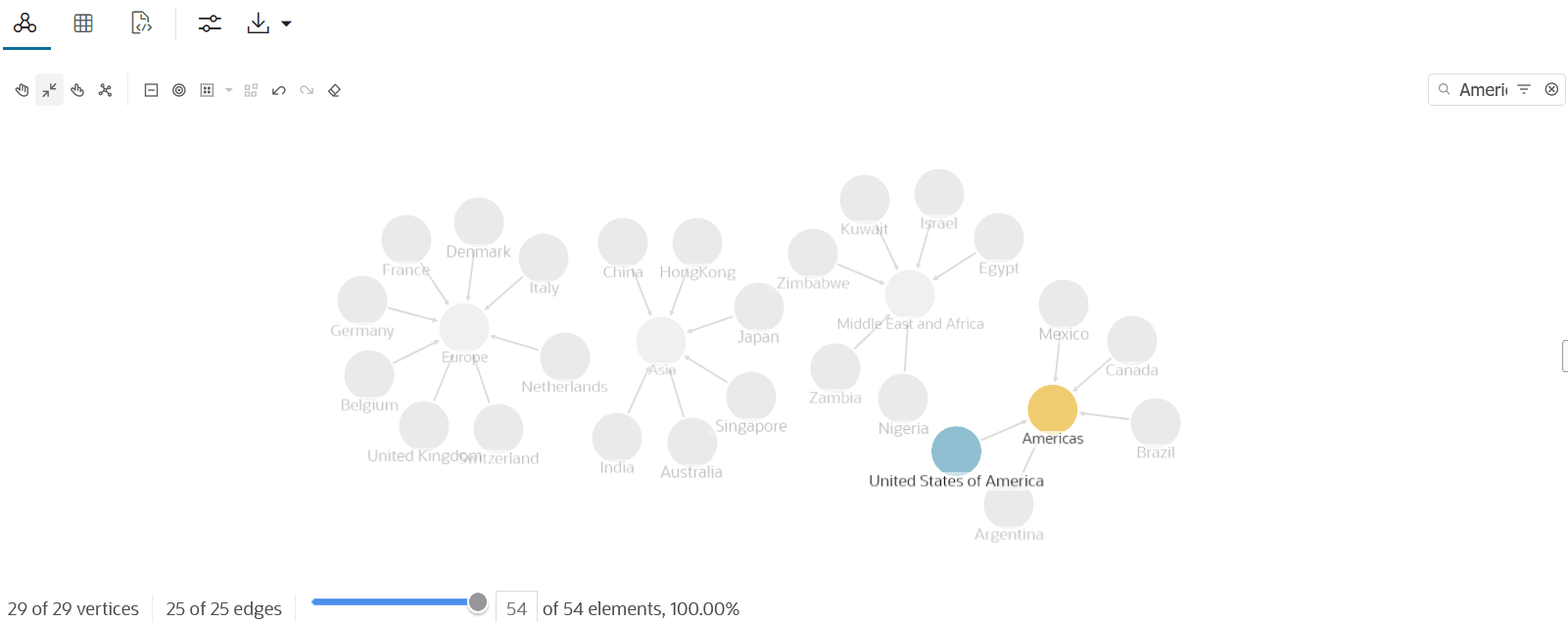
- Keyword Search: To perform a keyword search, start typing the keyword in the search input box. The search results are shown highlighted in the graph visualization.
- Conditional Search: Using this advanced search feature, you can build
conditional filters on graph entities (vertices and edges), combining entity types,
labels, properties, and operators.
The following two options are supported for a conditional search:
- Search by Label:
- Click
 in the search input box.
- Click Search by Label.
- Click the input text box and select (or deselect) the
Vertices and Edges
as required.
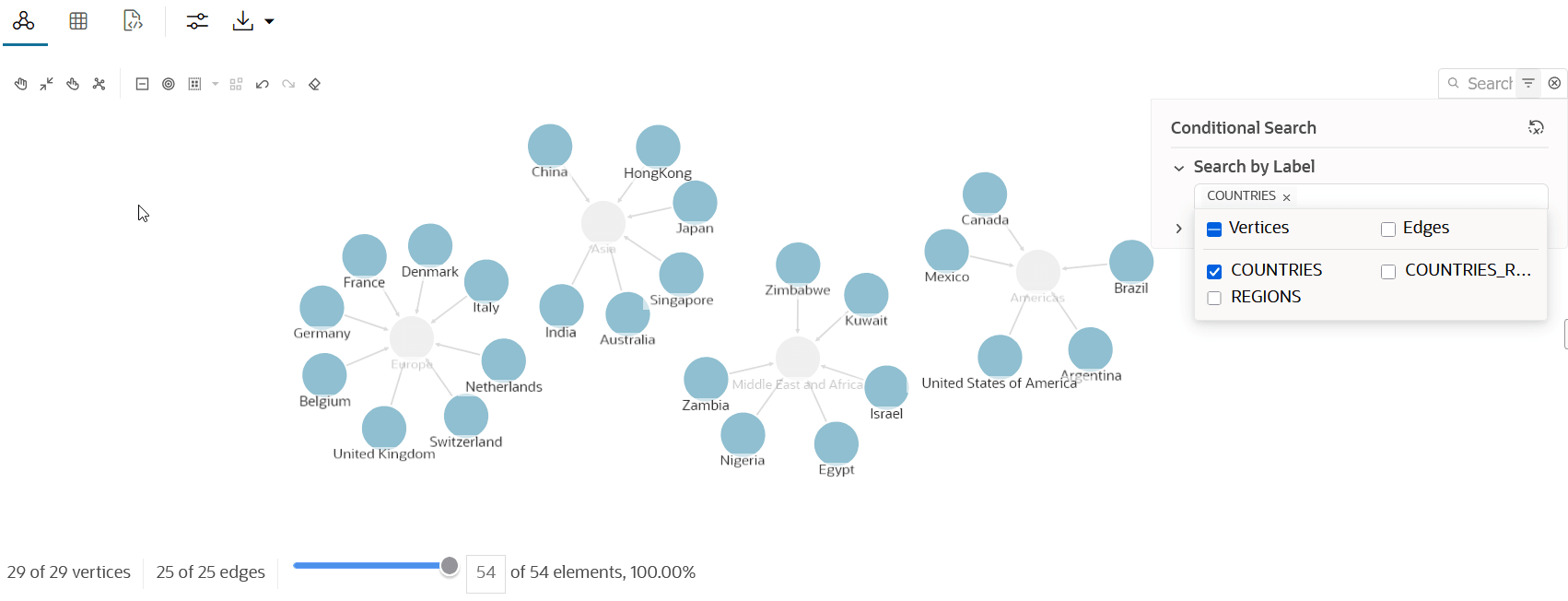
The filter is applied immediately to the graph visualization. The following example filters only
COUNTRIESvertices.
- Click
- Search by Property:
- Click in the search input box.
- Click Search by Property.
- Click + to add the property
attribute to search.
- Select the graph element to which the property
belongs.
Supported values are: Vertex, Edge, or Both.
- Select a property name.
- Select an operator.
- Enter the property value that you wish to
search.
Note that you can configure a single value or a list of values to search.
- Select the graph element to which the property
belongs.
- Optionally, repeat the previous step to add as many rows for conditional search.
- Set the Logic operator value
when multiple rows are configured for a conditional search.
- OR returns results that match any of the specified conditions.
- AND returns results that match all specified conditions.
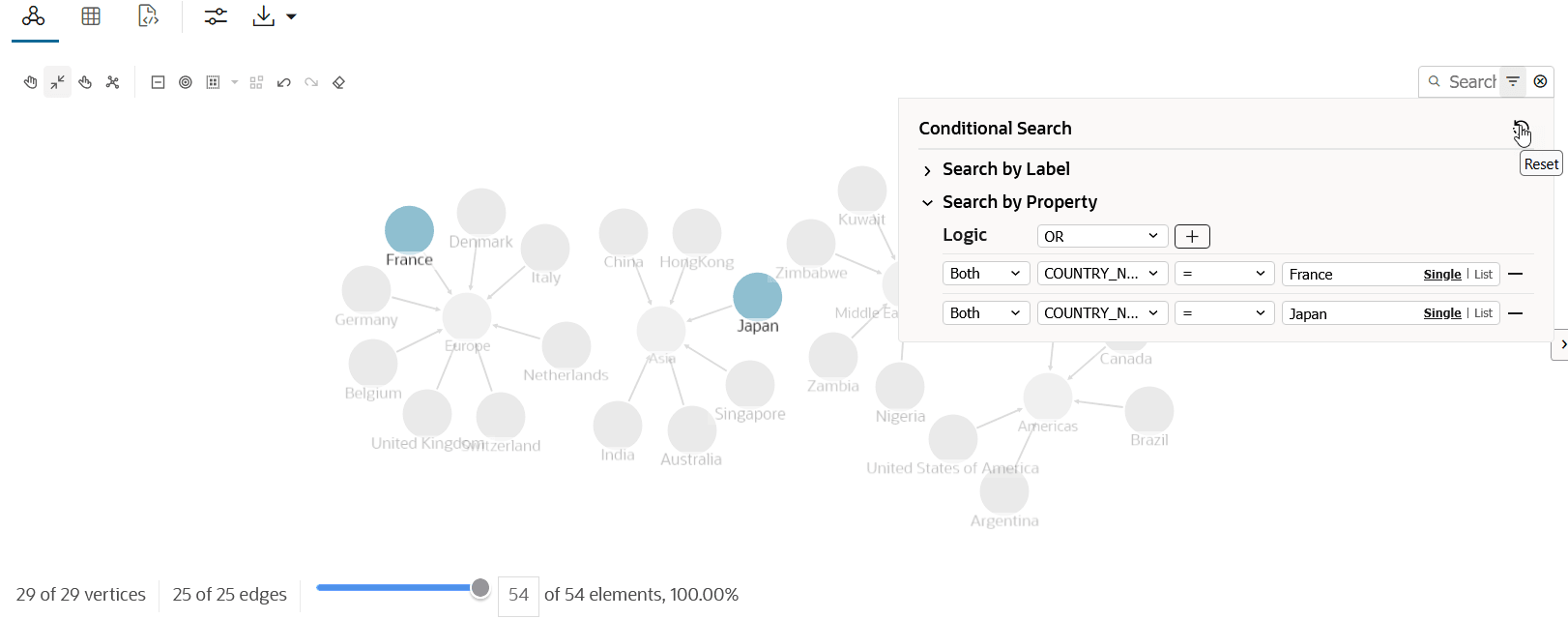
The following example shows a search for France or Japan using the
country_nameproperty.
- Click
- Search by Label: