Explore and Validate an RDF Graph
You can view the list of RDF graphs to which you have access in Graph Studio and explore their properties.
- Select the required row having the Type as
RDF.The graph properties are displayed on the bottom panel as shown:
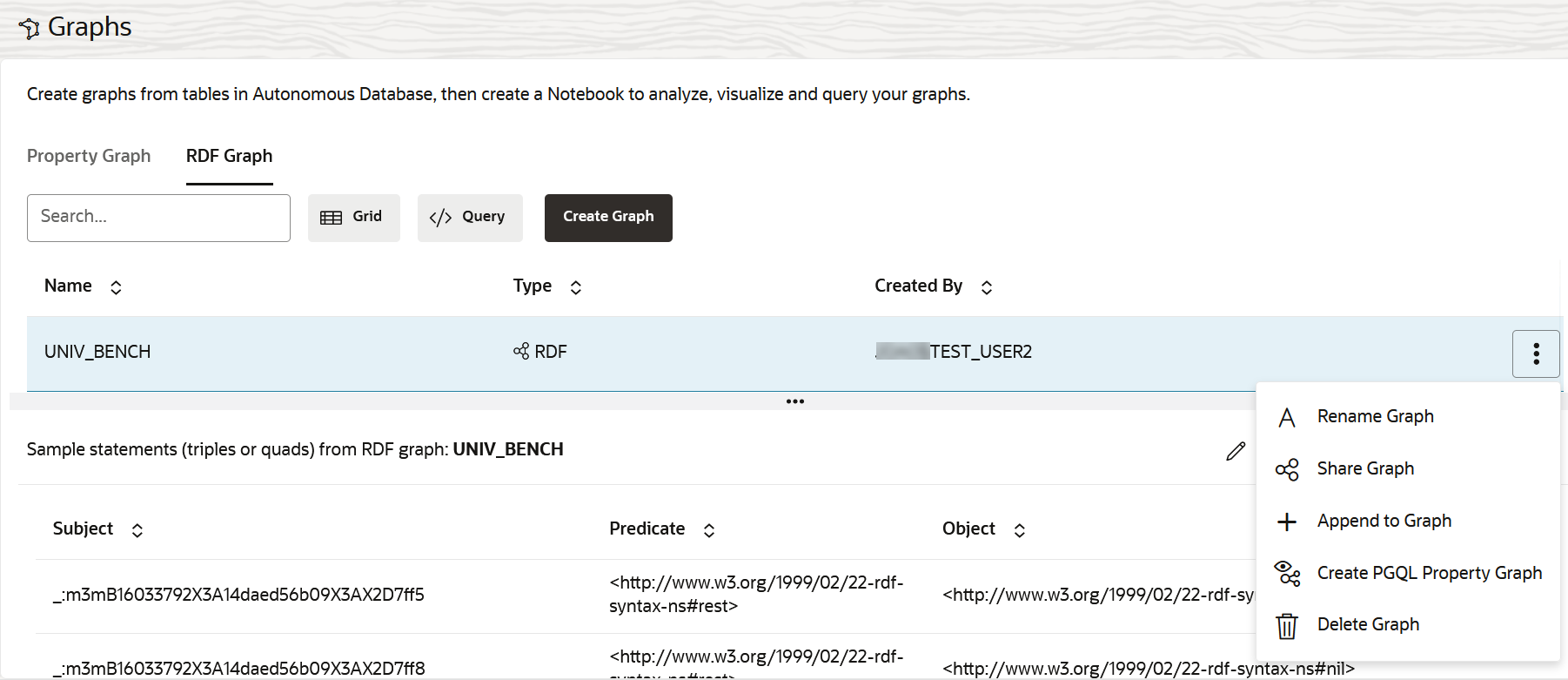
Description of the illustration explore_rdf_graph.pngYou can view the RDF statements that are loaded for the graph.
- Optionally, click open the additional options menu to perform any of the
following actions.
- Click Rename Graph to rename an RDF graph.
- Click Share Graph to share an RDF graph with another user. See Share an RDF Graph for more information.
- Click Append to Graph to append RDF data obtained from OCI Object Storage to an existing RDF graph. See Append RDF Data to an RDF Graph for more information.
- Click Create PGQL Property Graph to create a property graph from an RDF graph.
- Click Delete to delete an RDF graph.
It is important to note that when an RDF graph is deleted, Graph Studio removes all the RDF graph collections and entailments using this RDF graph. An appropriate warning is displayed as shown:
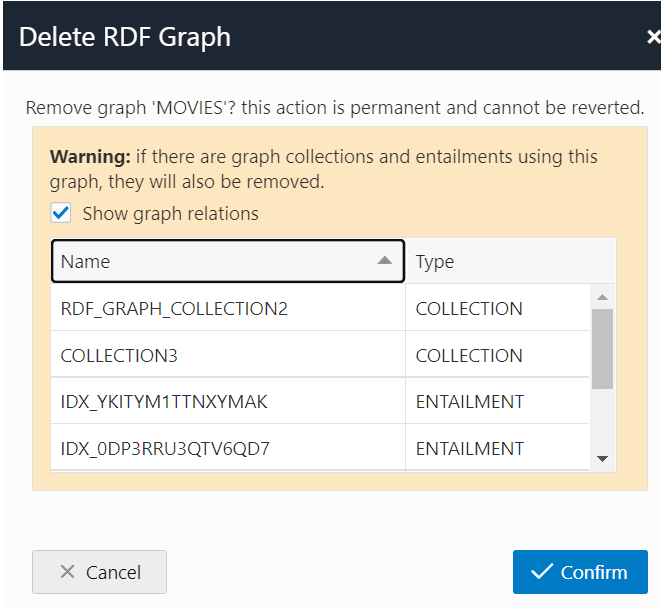
Description of the illustration rdf_graph_delete.png
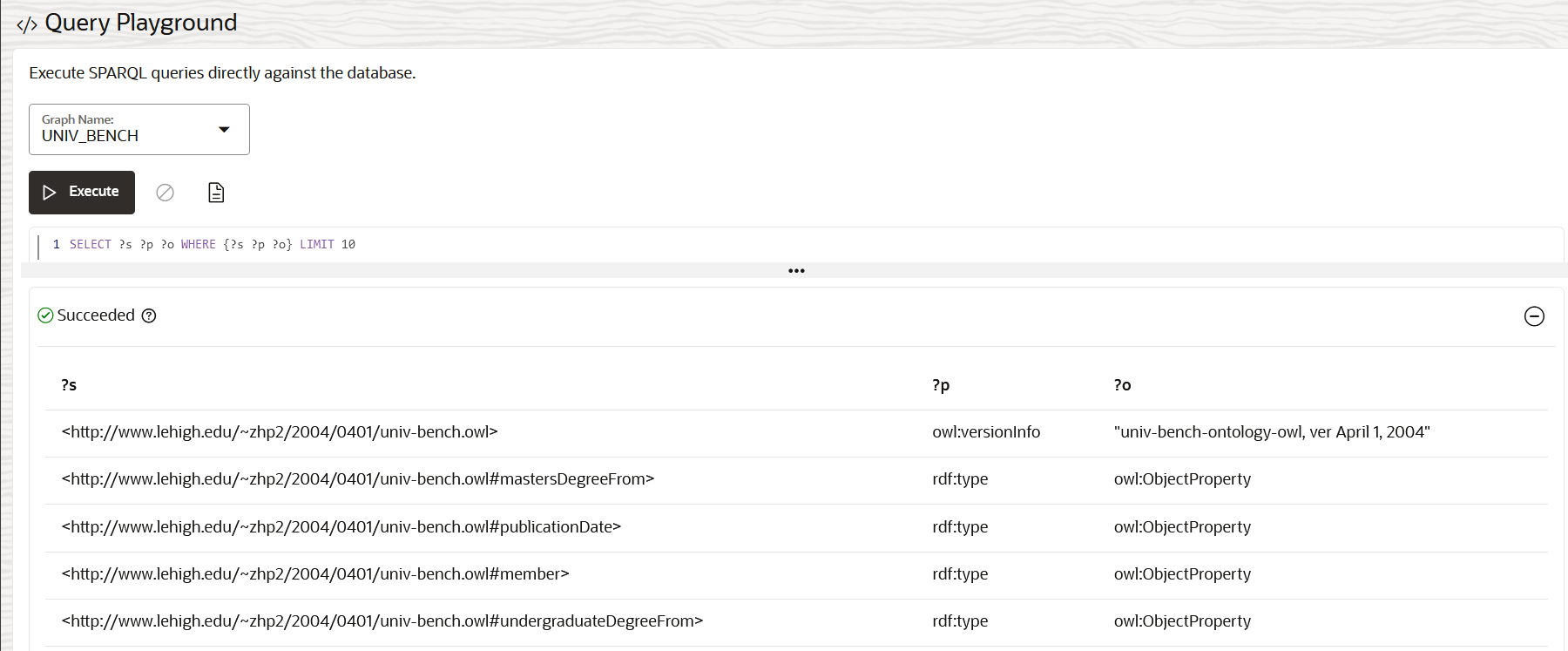
- Optionally, click the </> Query button to open the
Query Playground page and run a SPARQL query on an RDF graph.
- Click Execute to run the query.
The following example runs a SPARQL
SELECT
                                    DISTINCT
query on the selected RDF graph.
- Click Execute to run the query.