Synchronize New Case Records from Microsoft Dynamics 365 to ServiceNow

Microsoft Dynamics CRM is a powerful customer relationship management (CRM) solution that helps businesses manage sales, customer service, and marketing operations efficiently.

This use case provides an overview of capturing new case records from Microsoft Dynamics 365, processing them in Oracle Integration, and synchronizing the data with the ServiceNow platform using integrations built with the ServiceNow Adapter.

The following adapters and their operations are used in this use case:
  • Microsoft Dynamics 365 CRM Adapter (trigger connection): Initiates the integrations in Oracle Integration when a new case is created in Microsoft Dynamics 365. The Microsoft Dynamics 365 CRM Adapter captures event data, including Case Title, Incident ID, and System ID.
  • ServiceNow Adapter (invoke connection - Incident Creation): Used in the downstream ServiceNow Case Sync integration to create an Incident record in the ServiceNow platform using the synchronized case data from Microsoft Dynamics 365.

This implementation pattern provides an overview of the steps.

  1. Create Microsoft Dynamics 365 CRM Adapter and ServiceNow Adapter connections in Oracle Integration.
  2. Build a new application integration in Oracle Integration.
  3. Drag the Microsoft Dynamics 365 CRM Adapter into the integration canvas as a trigger connection.
  4. Configure the Microsoft Dynamics 365 CRM Adapter as follows:
    1. On the Basic Info page, provide an endpoint name (for example, D365NewCaseTrigger).
    2. On the Operations page, select Business as the entity type, Case as the entity, and Create as the operation.
    3. On the Summary page, review your selections and click Finish.
  5. Drag the ServiceNow Adapter into the integration canvas as an invoke connection.
  6. Configure the ServiceNow Adapter as follows:
    1. On the Basic Info page, provide an endpoint name (for example, CreateIncidentInSNOW).
    2. On the Action Page, select Create, Update or Delete Information.
    3. Configure the Operations Page as follows:
      1. Under Browse Applications, select Create new records in the selected Module or Table.
      2. Select the Incident module from the Select Module drop-down list.
    4. On the Summary page, review your selections and click Finish.
  7. In the mapper, perform the required mappings between Microsoft Dynamics 365 case fields and ServiceNow incident fields.
  8. When complete, activate the integration.
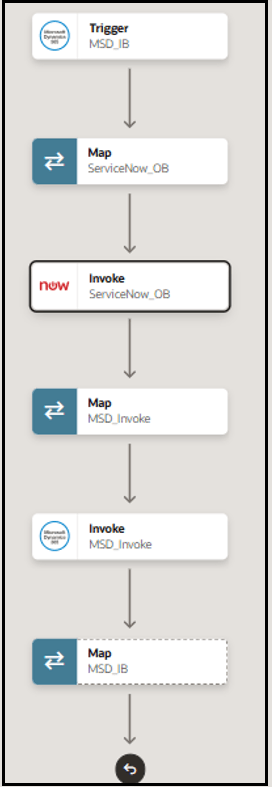

    The integration shows a trigger, map, invoke, map, invoke, and map.

    As a result, the integration is triggered whenever a new case is created in Microsoft Dynamics 365. The same case details are inserted into ServiceNow as a new incident.