Test a B2B Schema

Test a B2B schema with your sample payload to ensure that it's configured correctly.

  1. To test a schema in a project:
    1. In the navigation pane, click Projects.
    2. Click the project in which to test the schema.
    3. Click B2B B2B icon.
    4. In the Schemas section, select the schema.
  2. To test a schema in a standalone environment:
    1. In the navigation pane, click B2B, then Schemas.
    2. On the Schemas page, select the schema.
  3. In the schema editor, click Test.

    The Test schema dialog appears.
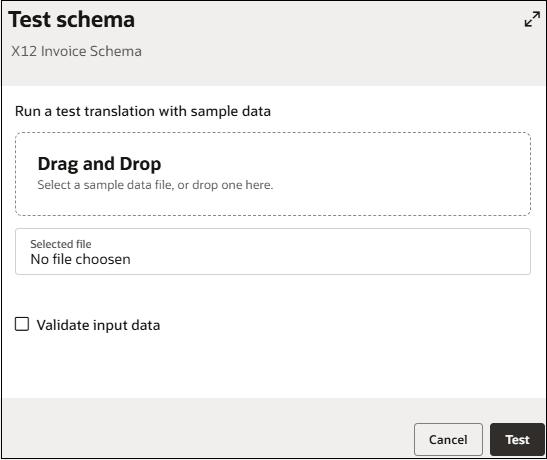

    Screenshot of a Test schema dialog for the X12 Invoice Schema. The dialog allows users to run a test translation using sample data. A large Drag and Drop area prompts users to select or drop a sample data file. Below it, the Selected file field indicates "No file chosen". A Validate input data checkbox is displayed beneath the file selection area. At the bottom-right of the dialog are Cancel and Test buttons, and an Expand icon appears in the upper-right corner of the dialog.

  4. Drag and drop a sample payload data file.
  5. To validate the input data, select the Validate input data checkbox, and click Test.
  6. If validation is successful, you get a green Success status with a message. This indicates that the sample payload is successfully translated without errors.
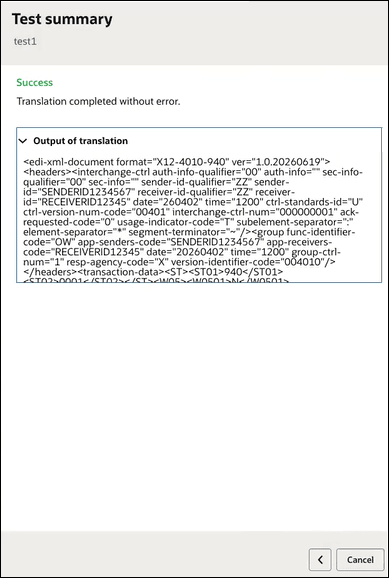
    Screenshot of a testing interface titled “Test summary.” The test named test1 shows a green Success status message stating “Translation completed without error.” Below, an expanded Output of translation section displays generated XML content for an EDI X12 940 document, including interchange, group, and transaction header information such as sender and receiver IDs, dates, times, and transaction set details. Navigation controls with a back arrow and Cancel button appear at the bottom right.

  7. If validation is unsuccessful, you get a red Failure status with a message. This indicates that the sample payload could not be translated and have errors.

    Expand the Output of translation and Error in translation sections to review the details and determine why the payload validation failed.
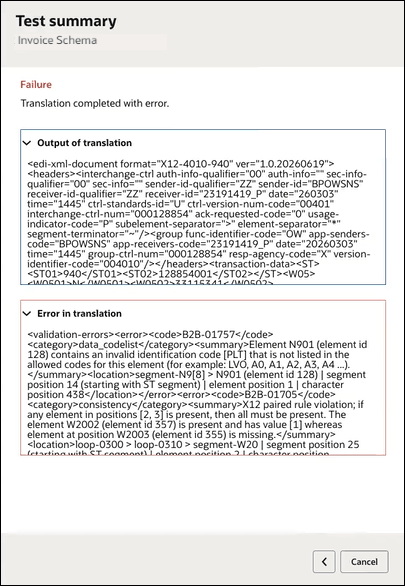

    Screenshot of a testing interface titled Test summary for a schema named Invoice Schema. The test result shows a red Failure status with the message “Translation completed with error.” An expanded Output of translation section displays generated XML for an EDI X12 850 Purchase Order document, including interchange, group, and transaction header information. Below it, an expanded Error in translation section contains validation errors, including code B2B-01757, indicating that an invalid identifier code was found in the N901 element and that a required element is missing. Navigation controls with a back arrow and Cancel button are shown in the bottom-right corner.

  8. Click Back Back icon to return to the Test schema page where you can update the payload or change the Validate input data option.