Complete Assigned Task as a User
When the human in the loop workflow is invoked by an AI agent, the human task in the workflow appears in the assigned user’s task list in Process Automation Workspace.
Prerequisite: To complete the task, the assigned user needs access to Process Automation Workspace.
- Alternatively, you can also go directly to Process
Automation Workspace from Oracle Integration.
- In the left toolbar of your project workspace, click Human in the Loop
 .
. - Search for the workflow that was invoked by the AI agent. The workflow should be in In progress state.
If there are several workflow instances, you can search for your instance by using one of the following options:
- Click the Search icon
 and enter any of the following in the search field: workflow name, task title or created by.
- Click the Filter icon
 and narrow down your search by specifying the workflow's status such as In progess, date range and time when it was created, the instance name, and so on.
- Click the Search icon
- Select the workflow and click View details
 .
.The Activity stream panel opens. The user task's status shows In progress indicating that the user hasn't completed the task.
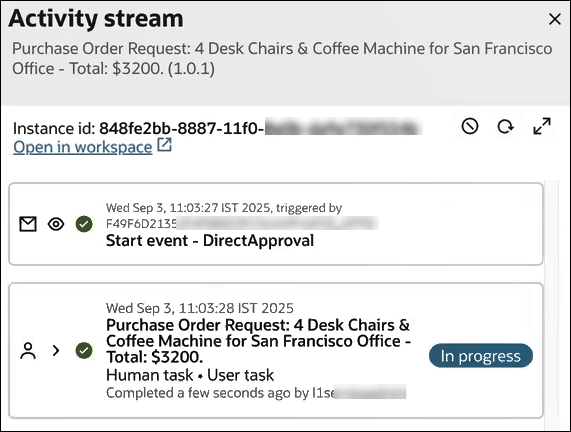
If you click the expand arrow on the user task, you can view the details of the task and the input payload associated with it. As the task hasn't been acted upon by the user, the output payload will be empty.
- In the left toolbar of your project workspace, click Human in the Loop
- As a user assigned the task, access the task in Workspace.
- In the Workspace navigation menu, select Tasks.
The My Tasks page appears.
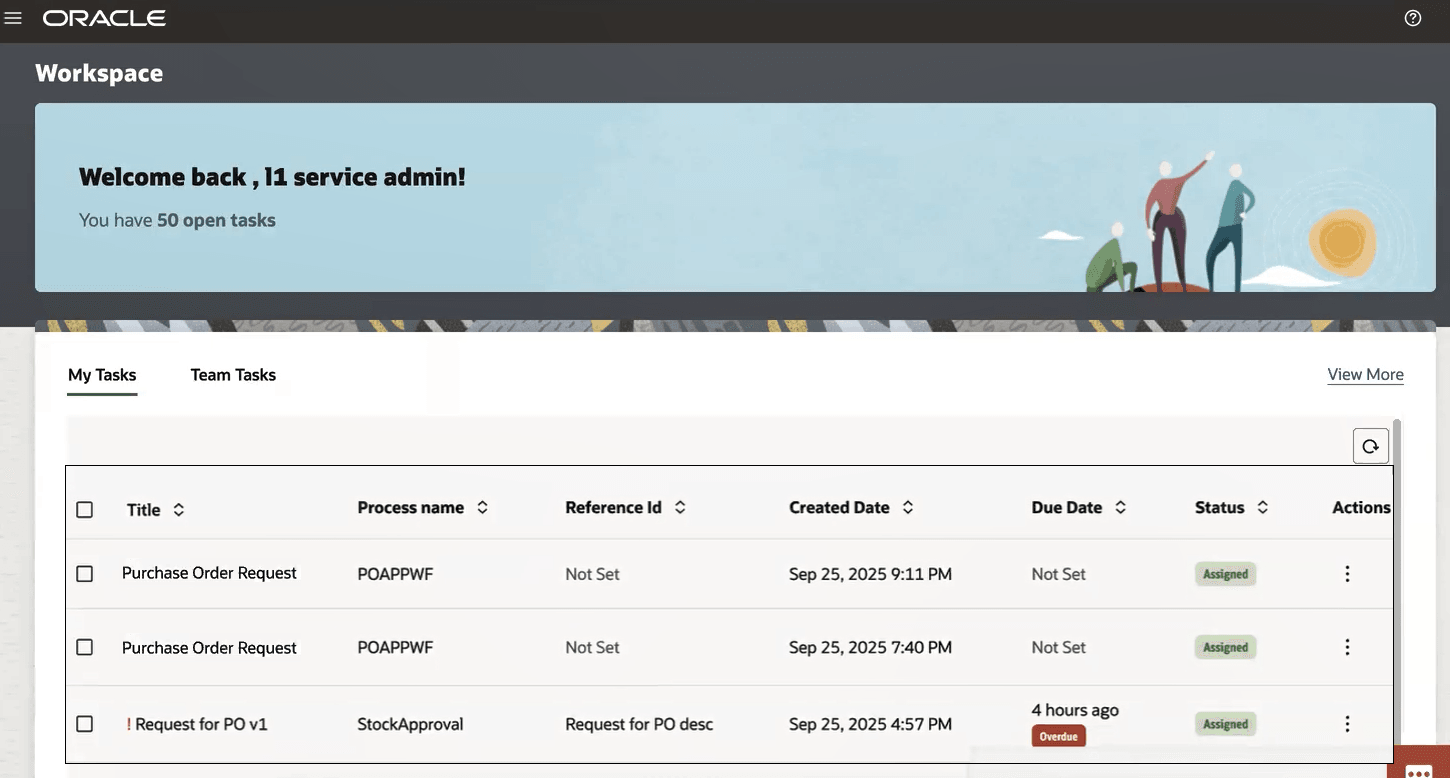
- In the Workspace navigation menu, select Tasks.
- Review the Activity stream of the workflow after the task completes.
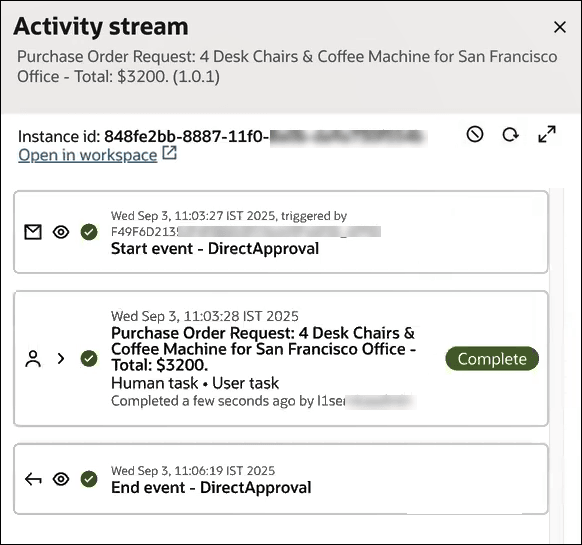
Click the expand arrow on the user task to view the task details. In the Details tab, you can view the task history, such as who approved the task and when. In the Payload tab, you can view both the task input and output payloads now. In the output payload you can see the response that was sent back to the AI agent.