Filtering Variables
For easier viewing, you can filter the list of a variables in a report package. The default filter is All, meaning all variables—static, reference, and shared—are displayed in the variables list.
Filtering categories are:
-
All
-
Static
-
Reference
-
Shared
-
In Use
-
Sourced
To filter variables:
- In the drop-down list in the Report Package panel, select Variables.
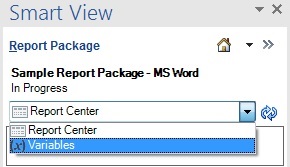
The list of variables available in the report package is displayed in the panel.
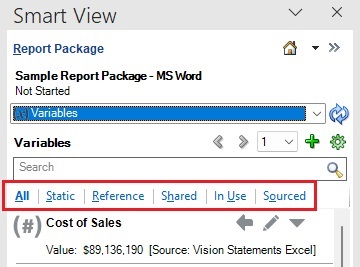
- Choose a filtering option by clicking the links at the top of the variable list:
-
All—Displays all variable types.
-
Static—Displays only static variables.
-
Reference—Displays only reference variables.
-
Shared—Displays only shared variables.
-
In Use—Displays only those variables that are in use in the currently-opened doclet.
-
Sourced—Displays only those variables that are in sourced from the currently-opened doclet.
Note:
If you do not see all the available filtering options in the Variables panel, try either of these methods in order to view all filtering options:
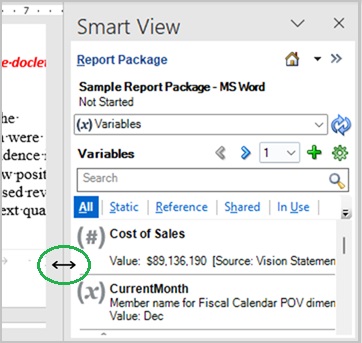
-
Widen the Variables panel using the Microsoft Office two-headed arrow, as shown below circled in green. Point your mouse at the vertical line between the doclet pane and the Variables panel until you see the two-headed arrow, click it, and then drag to the size you require.
-
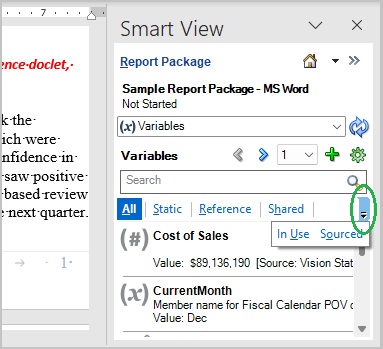
Use the drop-down arrow at the right of the Variables panel, as shown below circled in green, to view, and select from, the remaining available filters.
Tip:
To help to locate the variables in use in the current doclet, you may choose the highlight option on individual variables, as described in Highlighting Variables in Doclets
-