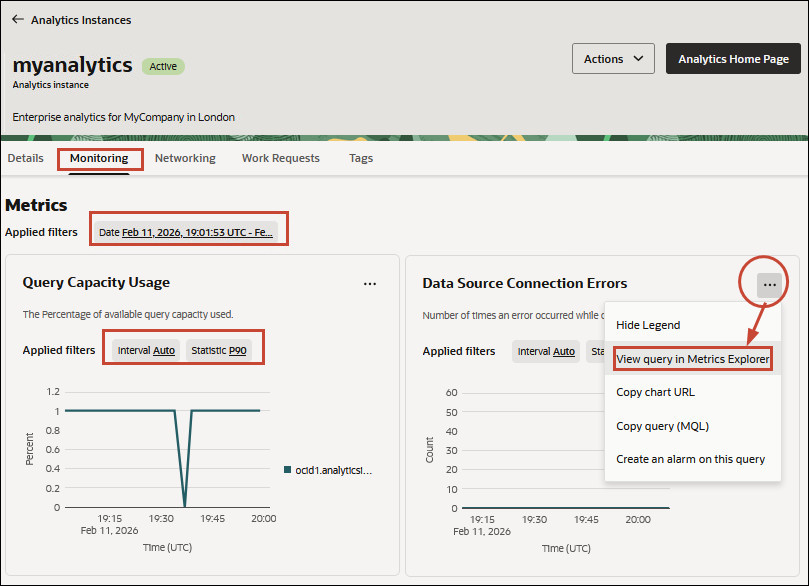
If you're an administrator with manage access, you'll see a
Metrics tab on the Oracle
Analytics Cloud instance details page. From the Metrics tab, you can view charts that report how many
errors occur connecting to your data sources and how much available query capacity you're
using.
If you check these metrics regularly, you'll learn to recognize trends as
they develop and prevent problems in the future.
- In Oracle Cloud
Infrastructure Console, click
 in the top left corner.
- Click Analytics & AI. Under AI Data
Platform, click Analytics Cloud.
- Select the compartment that contains the Oracle
Analytics Cloud instances you're looking for.
- Click the name of the instance you want to view metrics for.
- Click the Monitoring tab.
- Click the Date filter above the charts to monitor
metrics over a different time period such as Last 24
hours.
Alternatively, you can change the Start
Date, Start Time, End
Date, and End Time to select a custom
range.
- Change the Interval and Statistic
fields to change the metrics displayed.
The metric count occurs every five minutes.
- Click the Actions menu to navigate to the Metrics
Explorer where you can create custom metric dashboards and alarms. For general
information about monitoring in Oracle Cloud Infrastructure, see Monitoring.