Subscription Sharing (Optional)
Learn how to share your Oracle AI Database@AWS subscription with multiple AWS accounts within the same AWS organization.
AWS Marketplace subscription is an agreement that allows an AWS account to access and use software and services listed in AWS Marketplace (example: Oracle AI Database@AWS). Once subscribed, customers can deploy the underlying product and pay bills through AWS Marketplace invoices as part of the consolidated AWS bill, simplifying procurement, billing, and compliance for organizations.
Subscription sharing enables an AWS account (the grantor account) to share its AWS Marketplace subscription with other AWS accounts (grantee accounts) within the same AWS Organization, so each account does not need to purchase the subscription separately.
Benefits of Subscription Sharing
- Enables organizations to purchase a single Oracle AI Database@AWS private offer and share it with multiple Lines of Businesses.
- Allows organizations to purchase a single Oracle AI Database@AWS private offer and use it across multiple environments to comply with Software Development Life Cycle (SDLC) process.
Prerequisites
Following are prerequisites for subscription sharing:
- You must purchase an Oracle Database@AWS private offer through AWS Marketplace.
- You must link an OCI tenancy during onboarding.
- The grantor account and all grantee accounts must belong to the same AWS organization.
- Identify the AWS account IDs of the grantee accounts that will receive the shared subscription.
| Task | Cloud | Persona | Permissions |
|---|---|---|---|
|
Create Grant Activate Grant Delete Grant List Grant |
AWS | Grantor or Buyer |
|
|
List Grant Accept Grant Activate Grant |
AWS | Grantee |
|
Subscription Sharing Workflow
-
The grantor account shares a subscription by creating a grant in AWS License Manager.
-
The grant can be accepted and activated by a user in the grantee account.
- The grantee account can choose to select Accept license. After the license is accepted by the grantee account, either the grantor account or the grantee account can then activate the license. The grantor account can't accept the license. It can only activate the license after it has been accepted by the grantee account.
-
An Activate account button appears in the grantee account.
-
Upon activation, a dedicated child compartment is created within the OCI Multicloud Link compartment and mapped to the grantee account, unless resource sharing is already in use. In that case, the child compartment is created as part of the resource sharing process.
-
After activation, the grantee account can provision and manage all Oracle AI Database@AWS resources.
Learn how to create subscription sharing.
Steps to Create Subscription Sharing
Step 1: Create a Grant in AWS License Manager (Grantor Account)
-
Sign in to the AWS Console using the grantor account, and open AWS License Manager.
-
If this is your first time using AWS License Manager, select Start using AWS License Manager and accept the required IAM permissions.
-
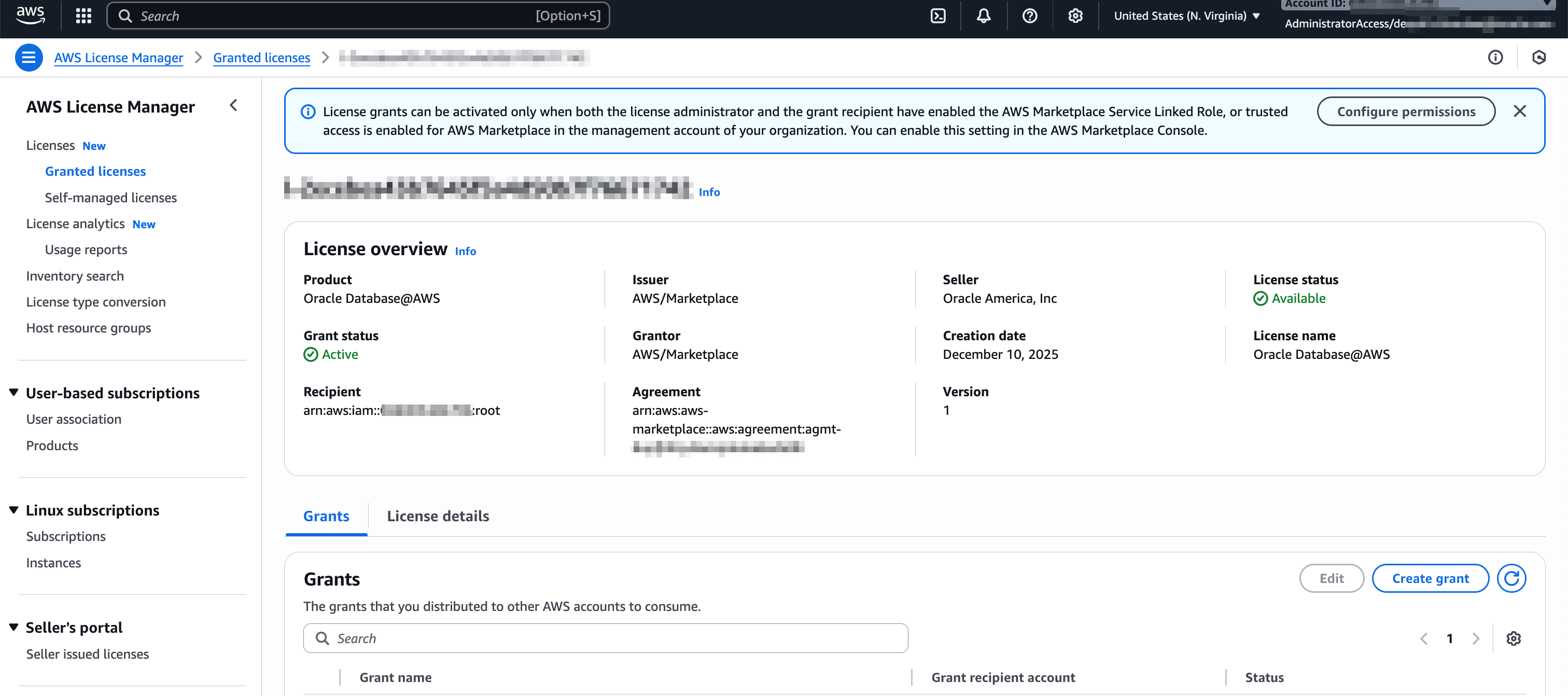
Under Granted licenses, select the License ID that corresponds to the Oracle AI Database@AWS subscription accepted through AWS Marketplace.
-
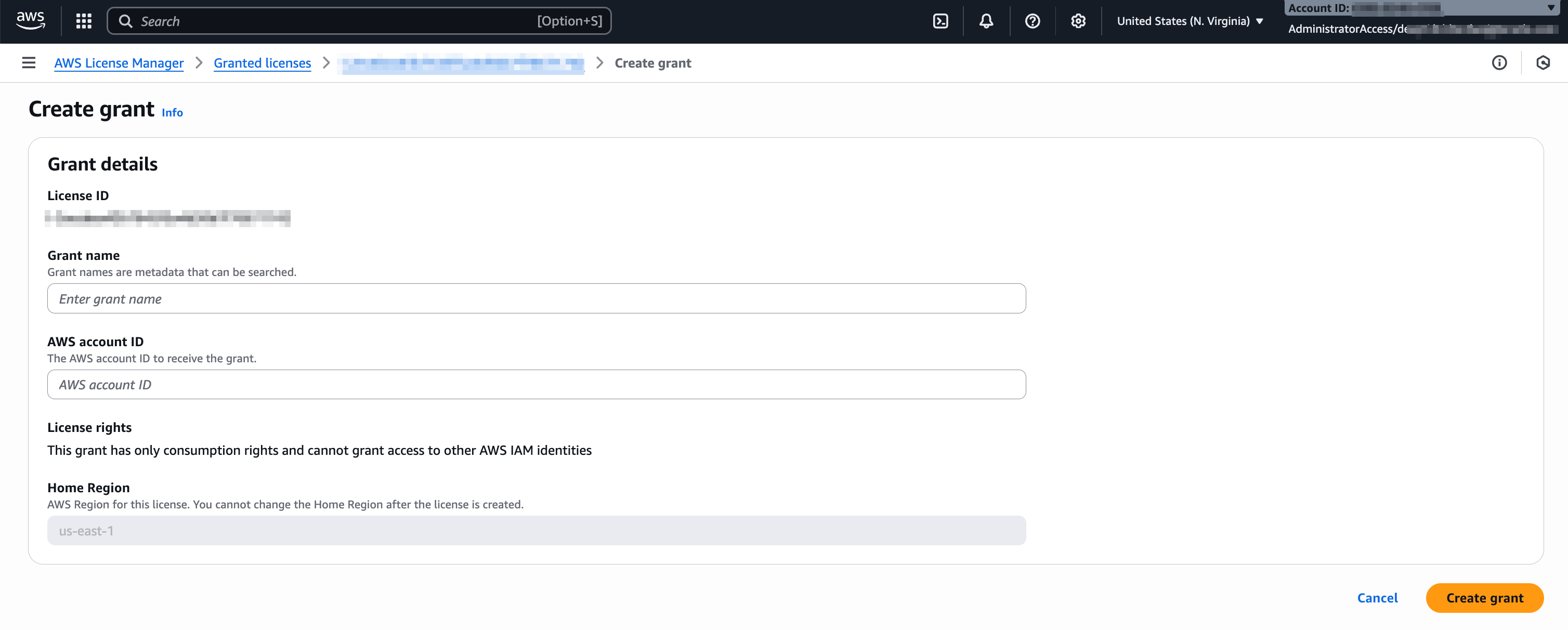
Select Create grant and complete the following steps:
-
Grant name – Enter a descriptive name. This value is metadata and can be used to search for the grant.
-
AWS account ID – Enter the AWS account ID of the grantee account that will receive the grant.
-
- Select Create grant.
- The grant is created and becomes available for acceptance in the grantee account. This process might take up to 15 minutes.
Step 2: Accept and Activate License (Grantee account)
Option A: Grantee Account Accepts and Activates the License
-
Sign in to the AWS Console using the grantee account, and open AWS License Manager.
-
In the License Manager console, find the subscription under Granted licenses.
-
The subscription granted by the grantor account appears in this list.
-
Optionally, you can search for the grant using the License ID provided during creation in the grantor account.
-
-
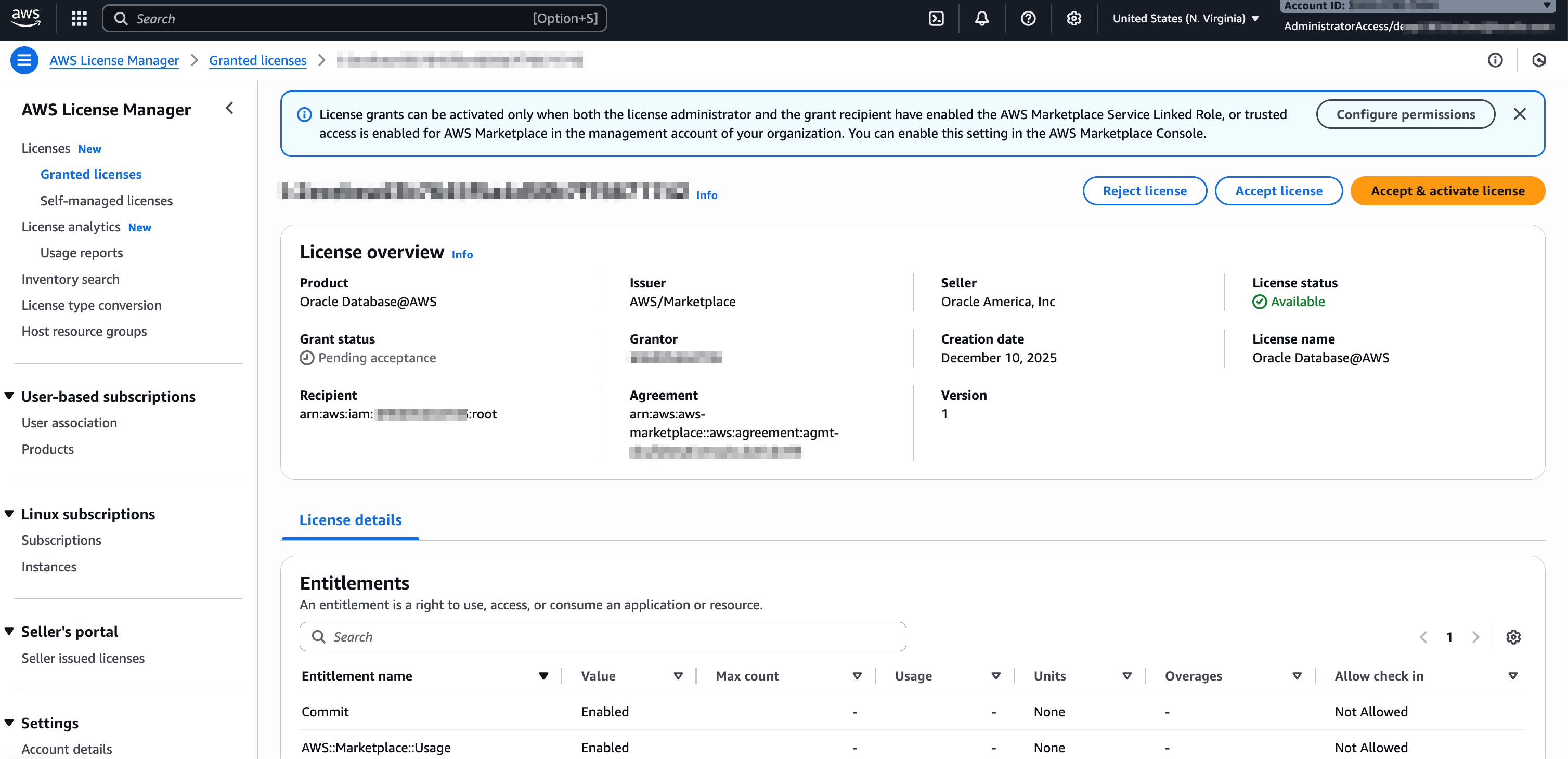
Select the License ID associated with the granted subscription.
-
Select Accept & activate license.
-
In the confirmation dialog, enter accept and activate, and then select Accept & activate grant.
-
After the grant is successfully accepted and activated, the grantee account can begin provisioning and managing Oracle AI Database@AWS resources.
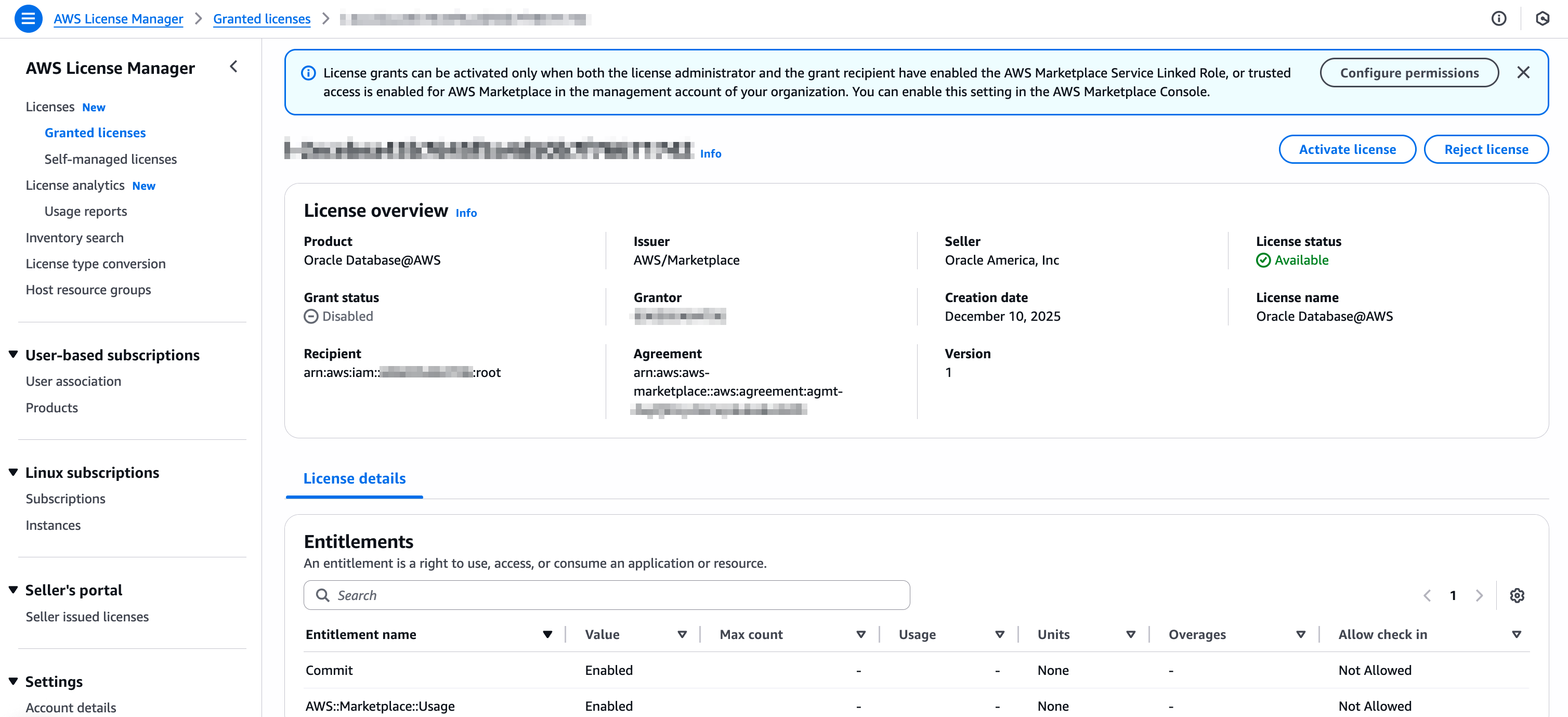
Option B: Grantee Account Accepts the License, Grantor Account Activates
-
Sign in to the AWS Console using the grantee account, and open AWS License Manager.
-
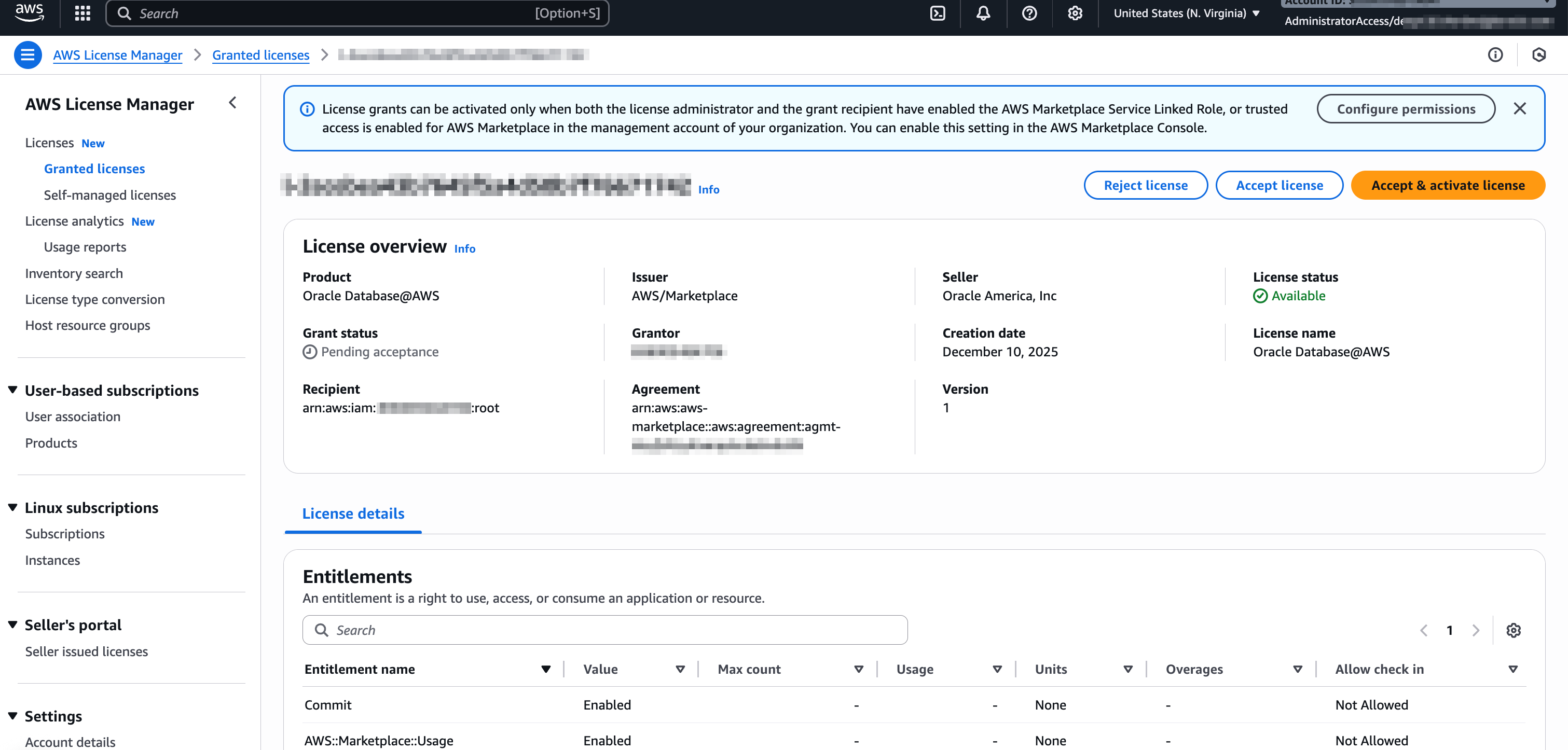
Find the subscription under Granted licenses and select the License ID.
-
Select Accept license to accept the grant.
-
After the license is accepted, sign in to the AWS Console using the grantor account.
-
Open AWS License Manager, navigate to Granted licenses, and find the accepted grant.
-
Select Activate license.
-
Once the license is activated, the grantee account can begin provisioning and managing Oracle AI Database@AWS resources.
Step 3: Activate account to use Oracle AI Database@AWS (Grantee Account)
- Sign in to the AWS Console using the grantee account, open the Oracle Database@AWS dashboard, and then from the Region drop down list, choose the AWS region that's associated with the grantor OCI Home Region.
- Select Activate account. The activation process might take up to 15 minutes.Note
This step isn't required if the grantee account is already using resource sharing.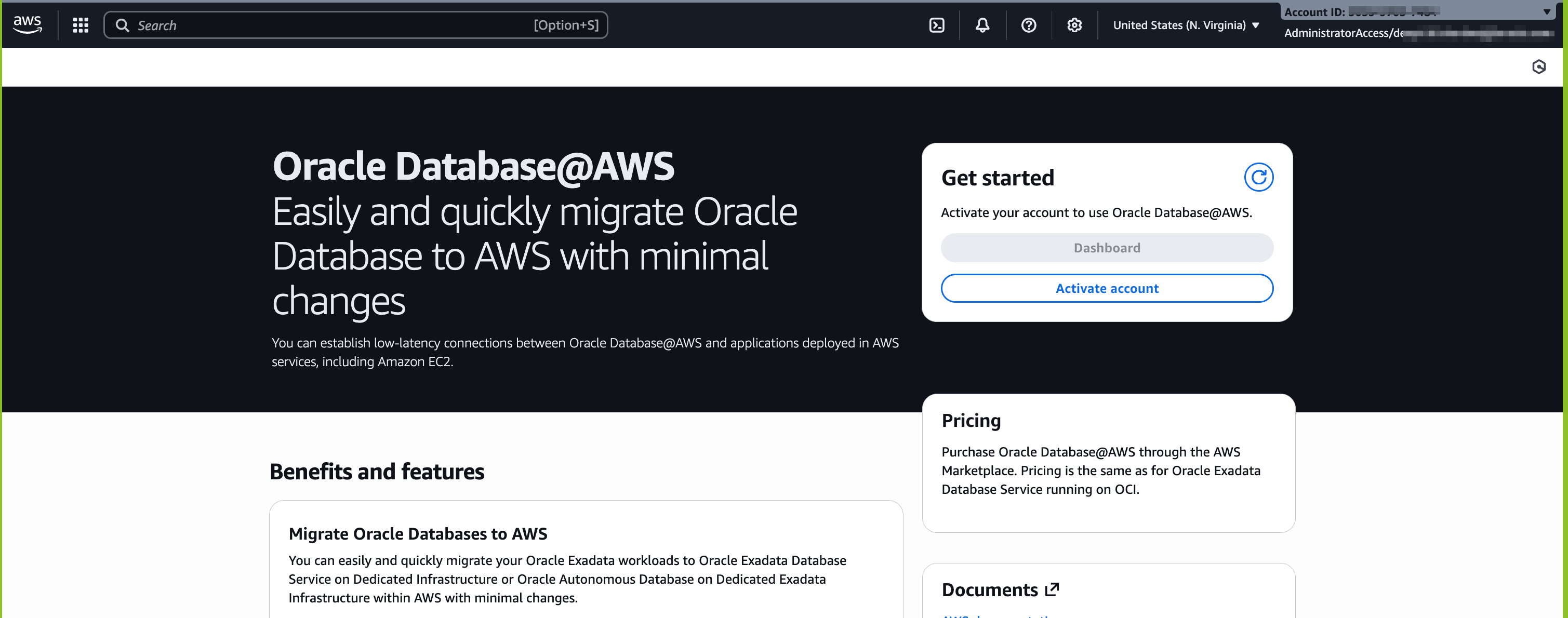
-
Once the Dashboard button is enabled you can start using the Oracle AI Database@AWS service.
-
Subscription sharing is only available through AWS Console.
Subscription sharing is only available through AWS Console.
Subscription sharing is only available through AWS Console.
There is currently no content for this page. The Oracle AI Database@AWS team intends to add content here, and this placeholder text is provided until that content is added.
Limitations
The following limitations apply to subscription sharing:
- A grantee account can receive and accept a license (entitlement) grant from only one grantor or buyer account at a time.
- You can only share entitlements with AWS accounts within the same AWS organization.
- You can't share entitlements with an entire organizational unit (OU) or the entire organization.
- A grantor or buyer account can't share entitlements with another grantor or buyer account.
- A grantor account can share a subscription with up to 50 grantee accounts.
- Entitlement grant operation can only be performed from the N. Virginia (us-east-1) AWS region.